How to Install IPTV North on Firestick (Step-by-Step, 2026)
The Fire TV Stick is the most popular IPTV device in Canada — and installing IPTV North on it takes about six minutes. Here's the complete guide, with screenshots-free steps anyone can follow and the settings that make hockey look its best.
Why the Firestick is perfect for IPTV North
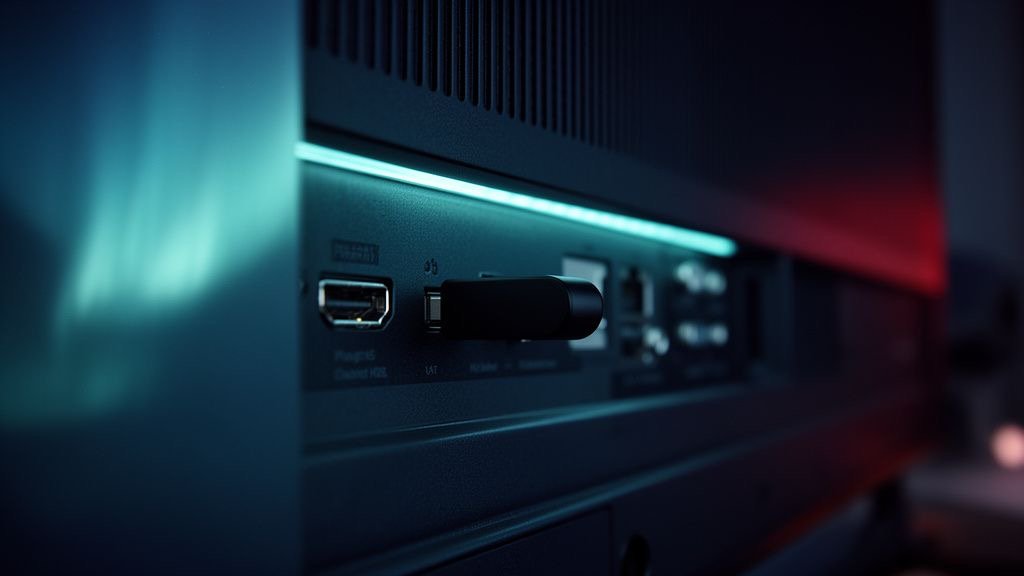
Amazon's Fire TV Stick is cheap, plugs into any HDMI port and runs the best IPTV apps, including TiviMate and IPTV Smarters Pro. It's the device we recommend most often to new IPTV North customers in Canada, especially those with an older TV or a TV whose built-in apps are slow.
Every model from the 2nd generation onwards works. For 4K and the smoothest menus, the Fire TV Stick 4K Max is the best choice. The Fire TV Cube is great too, especially if you want Ethernet built in.
What you need before you start
- A Fire TV Stick connected to your TV and Wi-Fi.
- Your IPTV North login — Xtream codes (username, password, server URL). No subscription yet? Ask for the free 24h IPTV North trial.
- About six minutes and your Fire TV remote.
Step 1: Install the Downloader app
IPTV players like TiviMate and IPTV Smarters Pro aren't always in the Amazon Appstore, so we use the free Downloader app to install them.
- From the Fire TV home screen, go to Find → Search.
- Type Downloader and select the app with the orange icon.
- Click Get or Download and wait for it to install.
Step 2: Allow apps from unknown sources
- Go to Settings → My Fire TV → Developer options.
- If you don't see Developer options, go to Settings → My Fire TV → About and click on your device name seven times. A message confirms you're now a developer.
- Open Install unknown apps and switch Downloader to ON.
This setting only allows Downloader to install apps; it doesn't change anything else on your Firestick.
Step 3: Install IPTV Smarters Pro or TiviMate
- Open Downloader and allow access to files if asked.
- In the URL box, enter the download code for your player. The IPTV North team sends the current codes for IPTV Smarters Pro and TiviMate on WhatsApp.
- Click Go, wait for the download, then click Install.
- When installation finishes, click Delete to remove the installation file and free up space.
Which player should you choose? IPTV Smarters Pro is simple and great for movies and series. TiviMate has the best TV-guide layout, ideal for hockey nights and channel surfing. Read our comparison of the best IPTV players for IPTV North.
Step 4: Add your IPTV North login
In IPTV Smarters Pro
- Open the app and accept the terms.
- Choose Login with Xtream Codes API.
- Enter any name (for example IPTV North), then your username, password and server URL exactly as received.
- Click Add user. The app downloads channels, the TV guide and the VOD library.
In TiviMate
- Open TiviMate and choose Add playlist → Xtream Codes.
- Enter the server address, username and password.
- Click Next; TiviMate shows how many channels and movies it found.
- Choose Done. The TV guide loads automatically.
Step 5: Start watching IPTV North
Open Live TV, choose a category — Canada, Sports, French, Kids — and pick a channel. Movies and series are in their own sections. Add your favourite channels to Favourites so you can find tonight's game in one click.
Best Firestick settings for IPTV Canada streaming
- Use the power adapter, not the TV's USB port. Underpowered sticks lag and restart.
- Use the HDMI extender that comes in the box — it moves the stick away from the TV and improves Wi-Fi.
- Connect to 5 GHz Wi-Fi or use an Amazon Ethernet adapter for 4K.
- Turn off data monitoring: Settings → Preferences → Data Monitoring → Off.
- Clear the app cache monthly: Settings → Applications → Manage installed applications → your player → Clear cache.
- In TiviMate, set Playback → Buffer size to Large if a channel stutters.
- Set the TV guide time zone to your local time (Eastern, Central, Mountain, Pacific or Atlantic) if programmes look shifted.
Troubleshooting IPTV North on Firestick
| Problem | Fix |
|---|---|
| “Invalid username or password” | Re-type the login, watching for spaces and capital letters. Copy the server URL including http:// and the port. |
| Channels load but no TV guide | Wait 2–3 minutes, then refresh EPG in the app settings. |
| Buffering on some channels | Switch to 5 GHz or Ethernet, try the HD version of the channel, restart the router. See the buffering guide. |
| Downloader won't install the app | Check that Install unknown apps is ON for Downloader and that you have at least 500 MB free. |
| Stream stops when someone else watches | Each IPTV North plan includes one connection; only one device can play at a time. |
Can I use IPTV North on more than one Firestick?
Yes, you can install IPTV North on as many Firesticks as you like — living room, bedroom, cottage. Each plan allows one stream at a time, so if two people want to watch at once, add a second subscription.
Next steps
That's it — IPTV North is now running on your Firestick. If you haven't chosen a plan yet, compare options on the IPTV North pricing page: the 12-month plan costs $99.99 CAD, just $8.33 a month. For other devices, see the full IPTV North installation guides or the quick Firestick setup page.
IPTV North FAQ
Is IPTV North available in the Amazon Appstore?
IPTV North is a subscription, not an app. You install a player like IPTV Smarters Pro or TiviMate and add your IPTV North login.
Which Firestick is best for IPTV North?
The Fire TV Stick 4K Max is the smoothest, but any model from the 2nd generation works well.
Why does IPTV North buffer on my Firestick?
Usually weak Wi-Fi or an underpowered stick. Use the power adapter, 5 GHz Wi-Fi or Ethernet, and clear the app cache.